0.1.1
Improved
- Improved screenshots
- Testing: e2e testing against a larger test suite

Disguise Designer plugin
Divides every screen in a feed mapping into feed rectangles in a pattern - grids, masonry, bricks or a mosaic - each taking its own part of the mapping's source canvas.
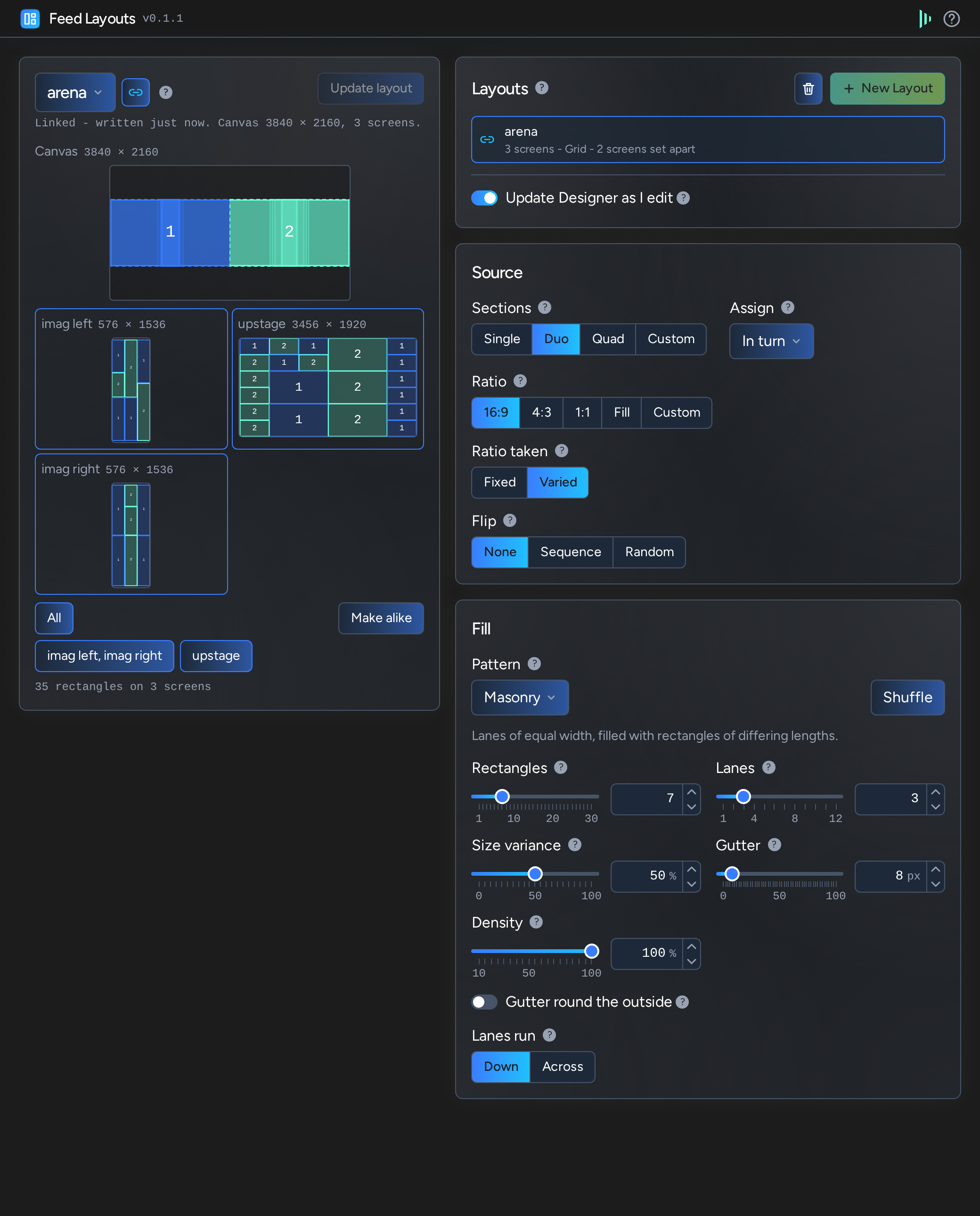
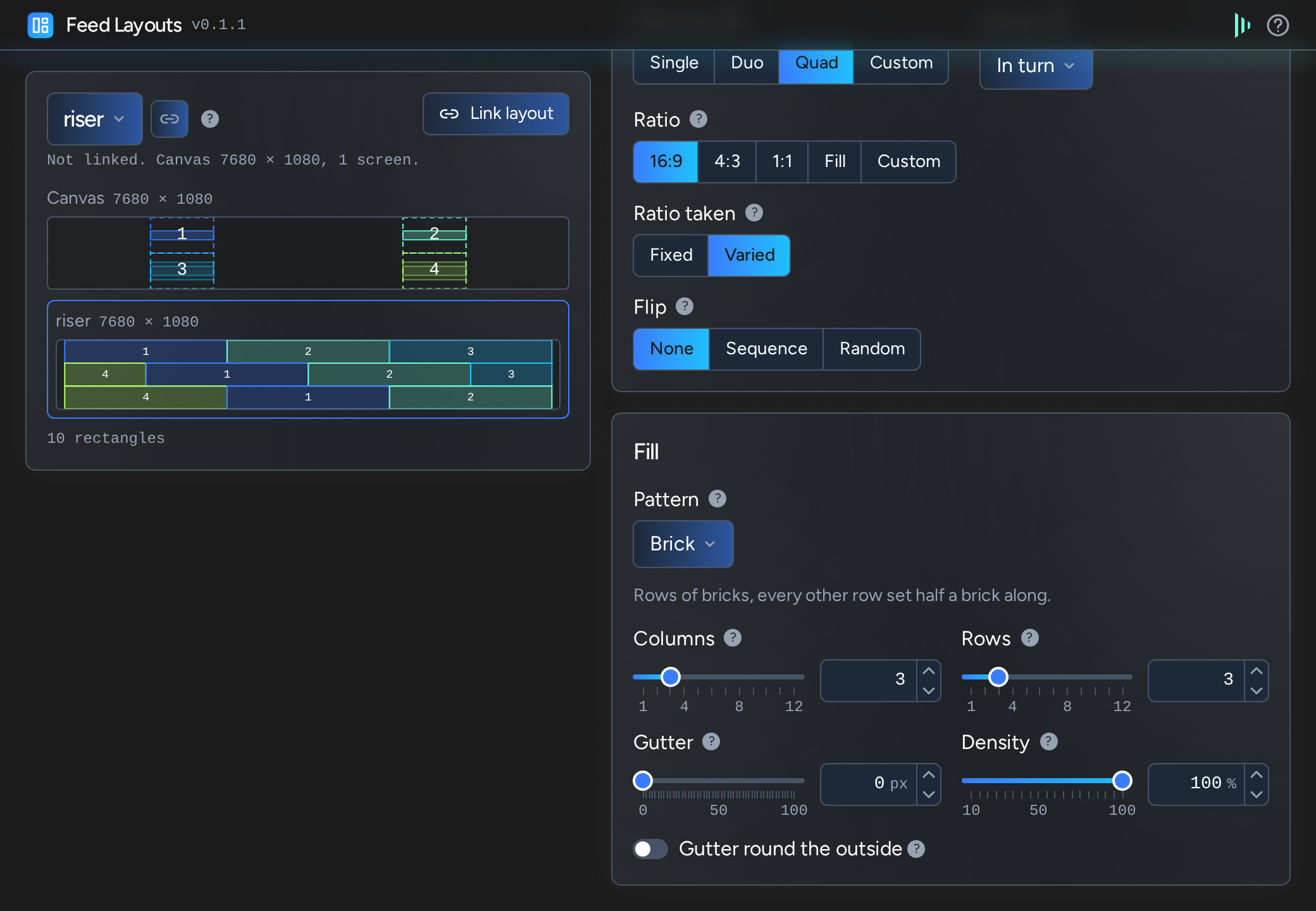
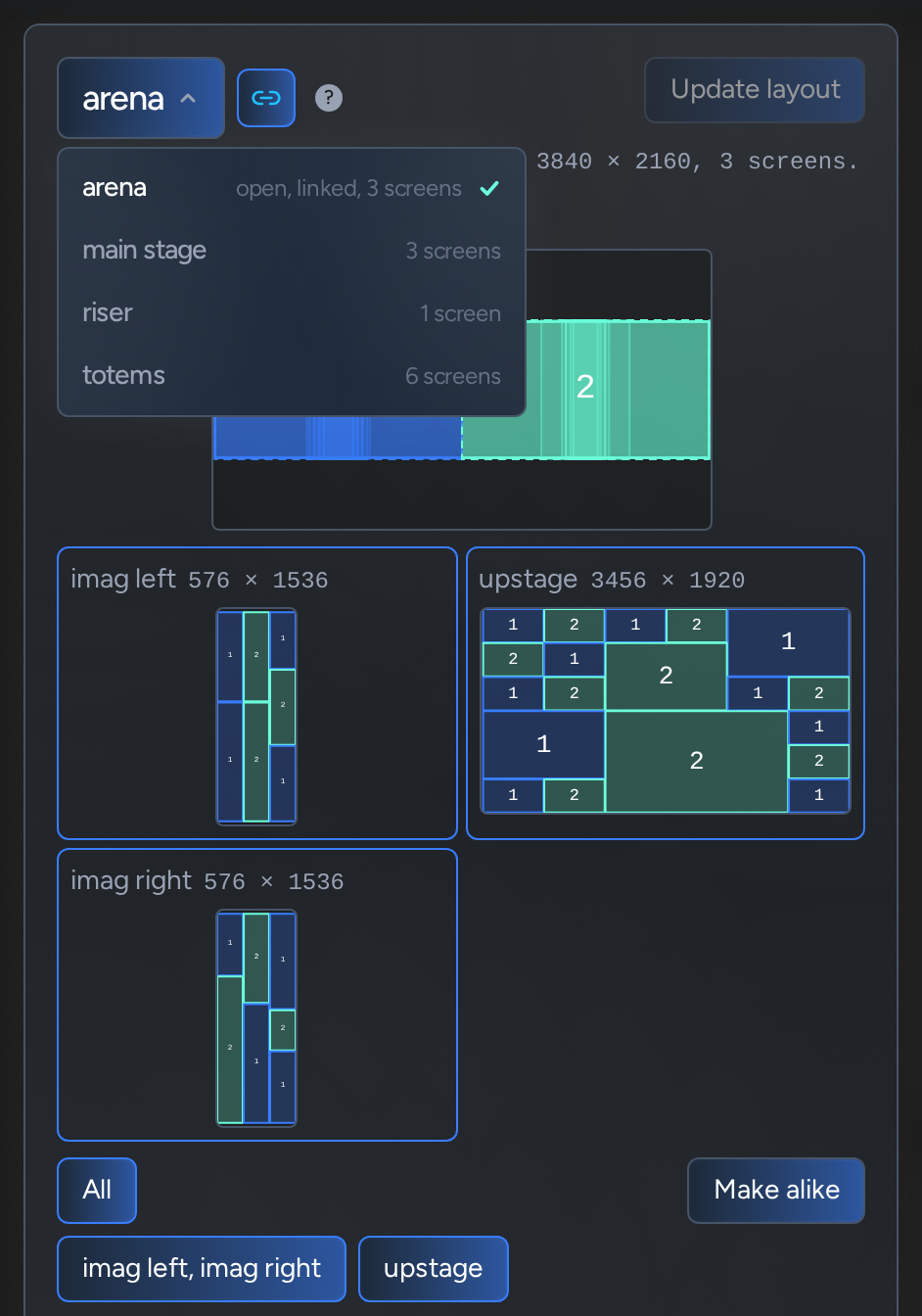
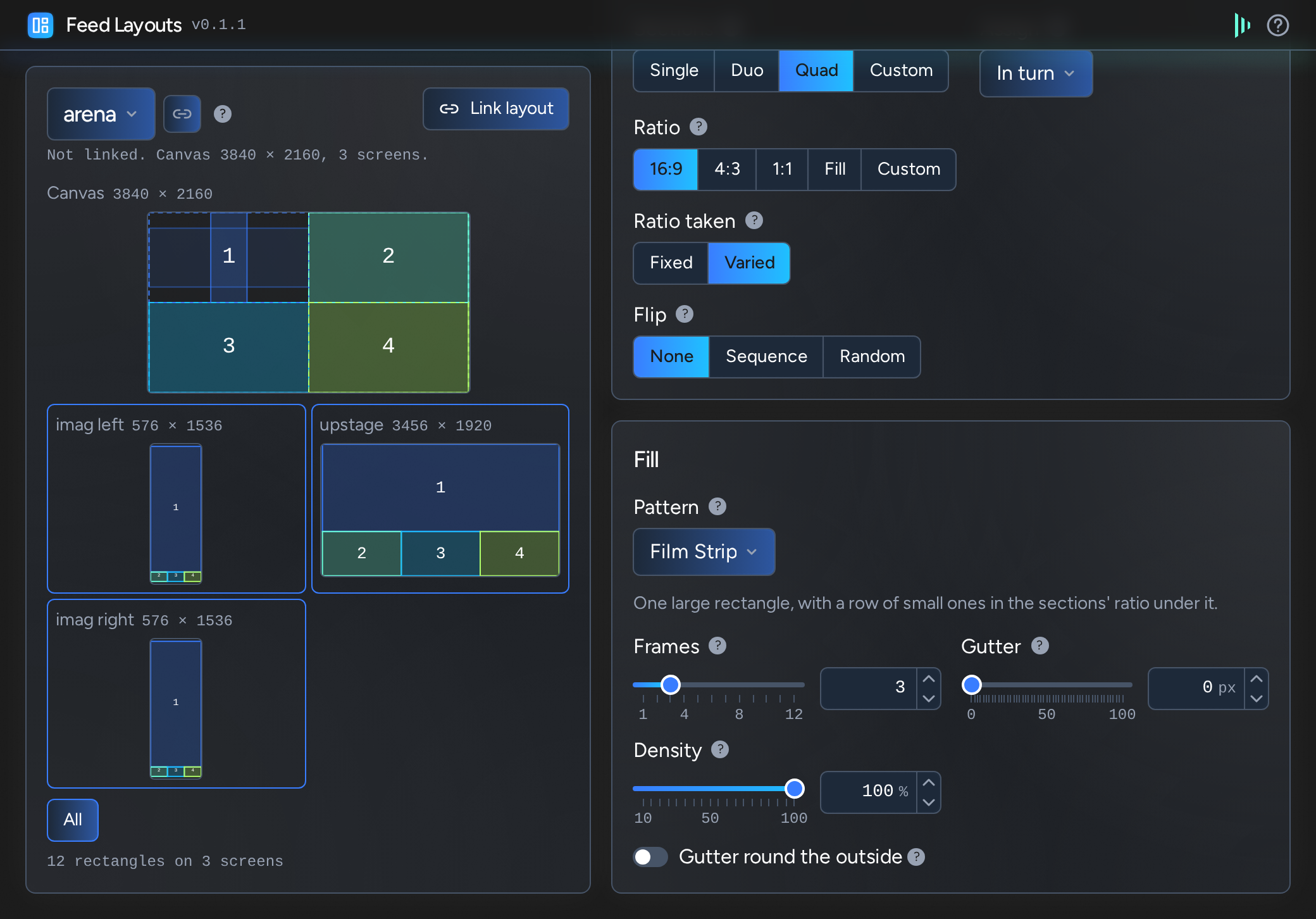
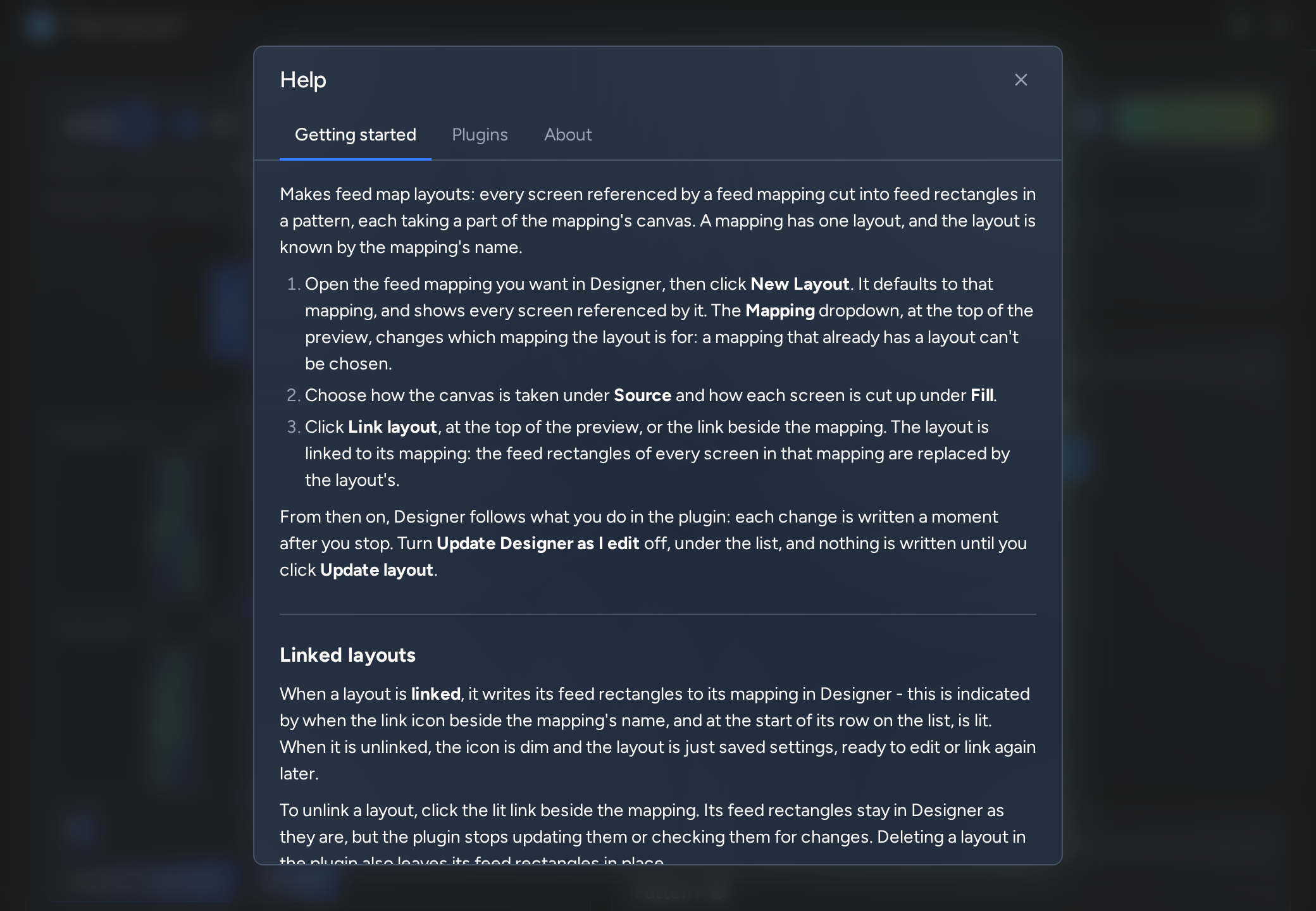
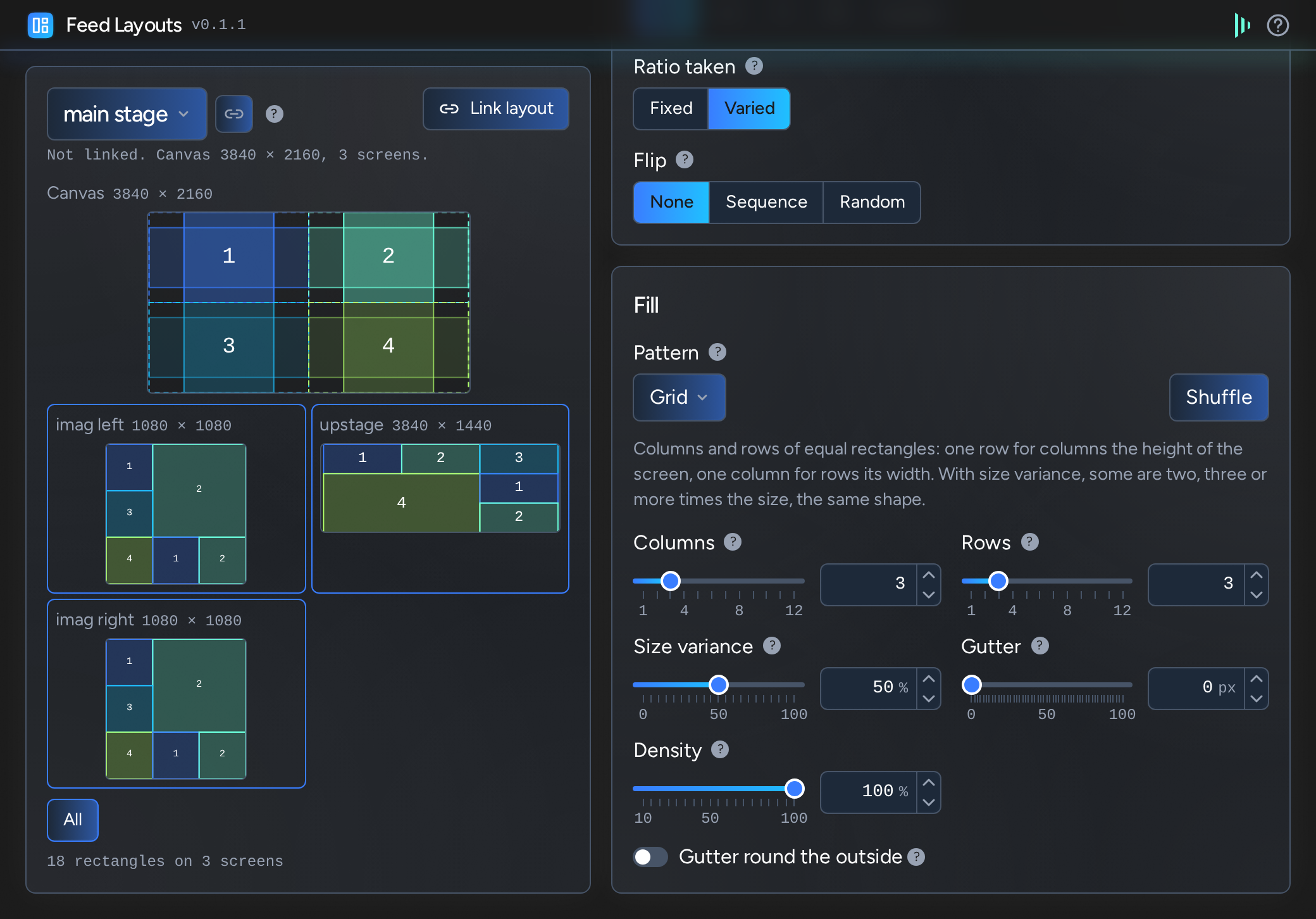
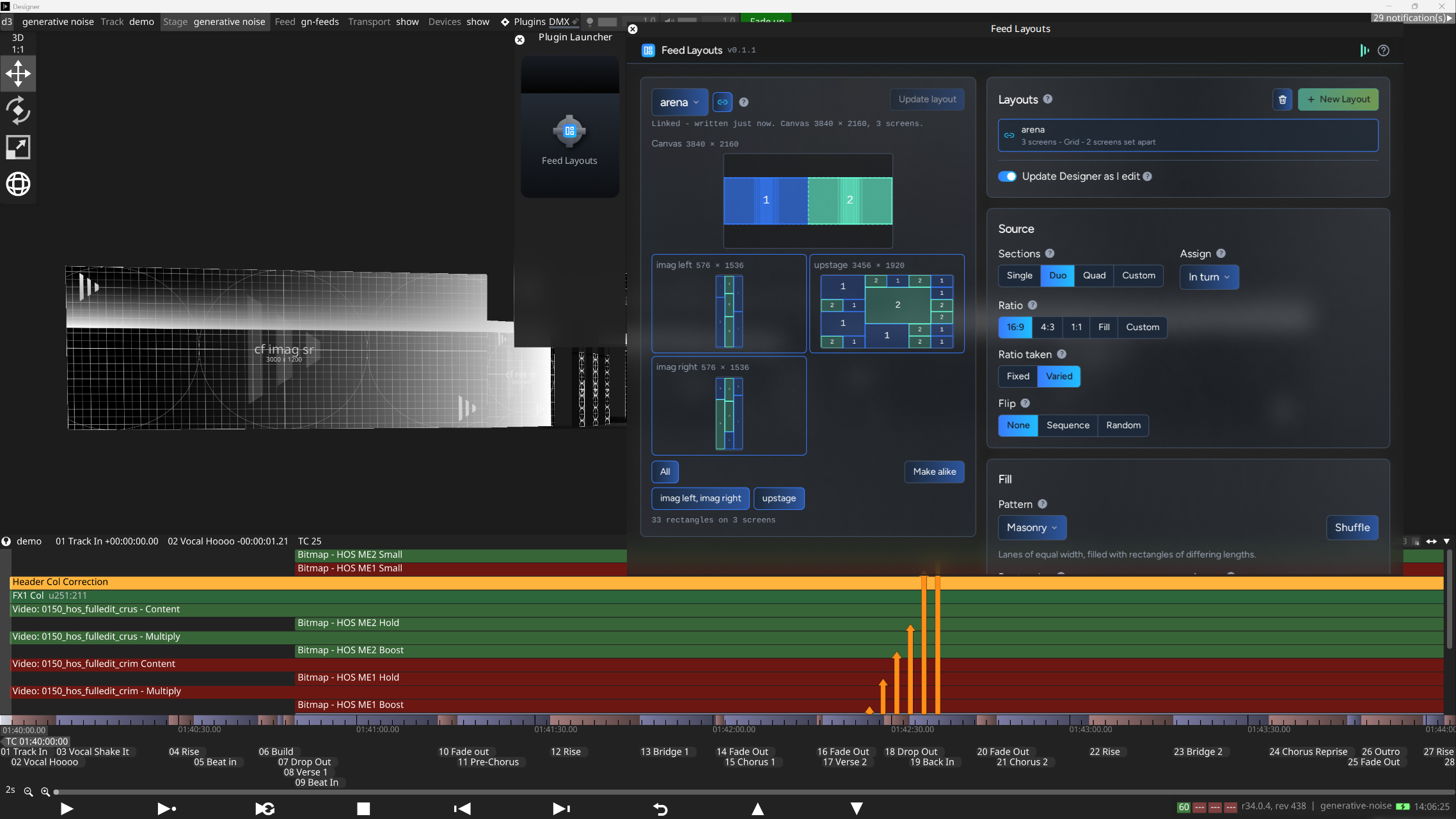
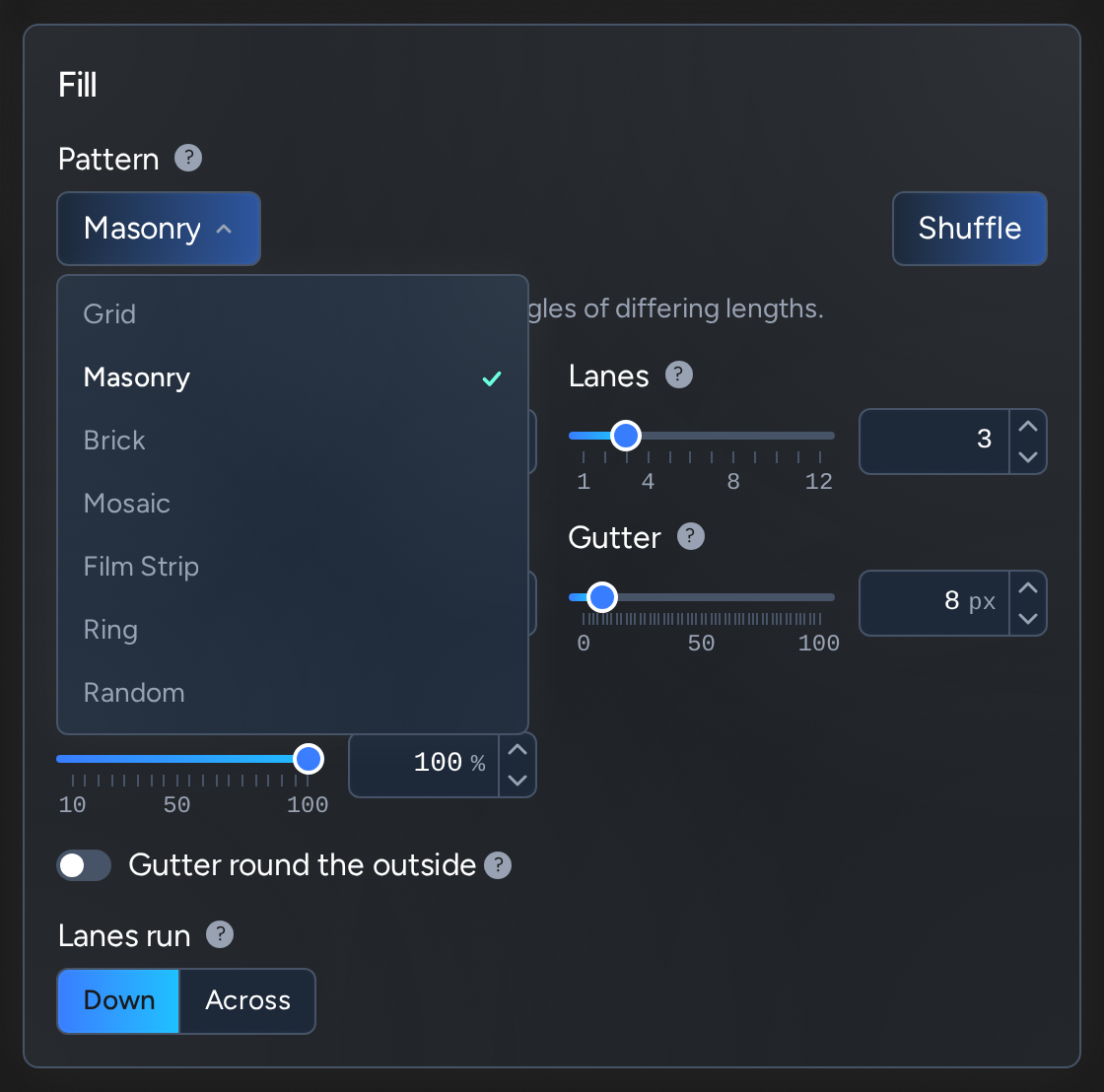
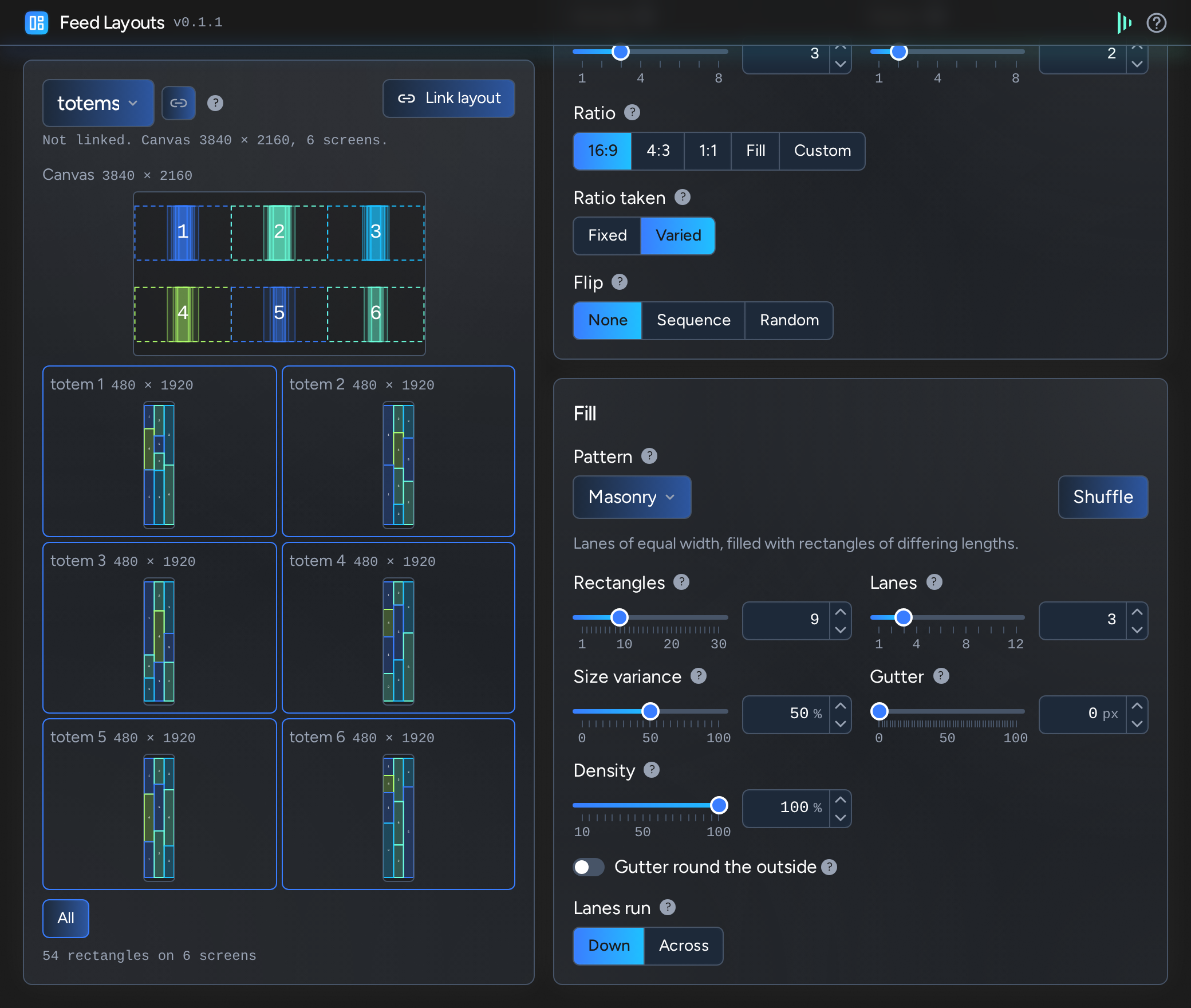
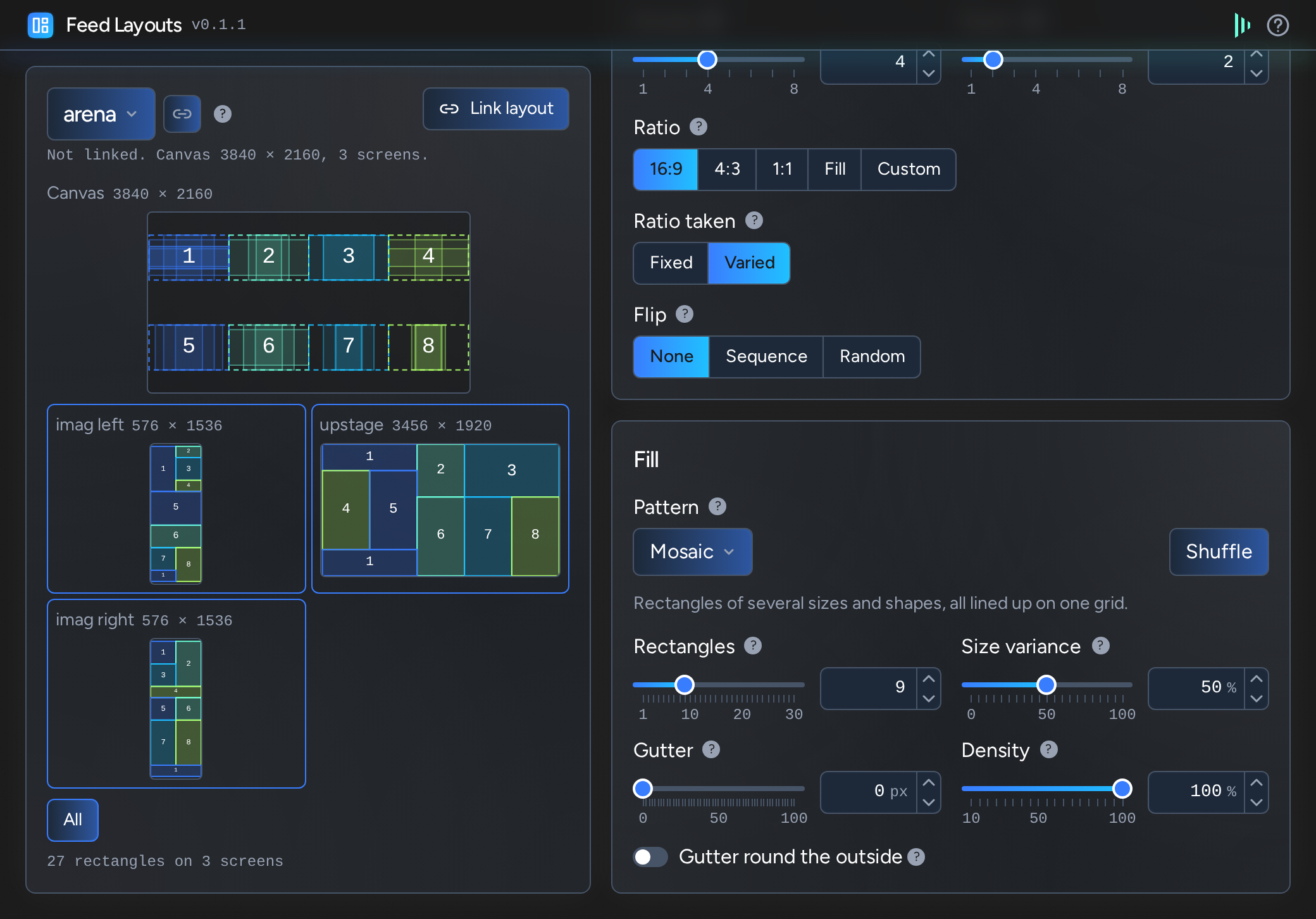
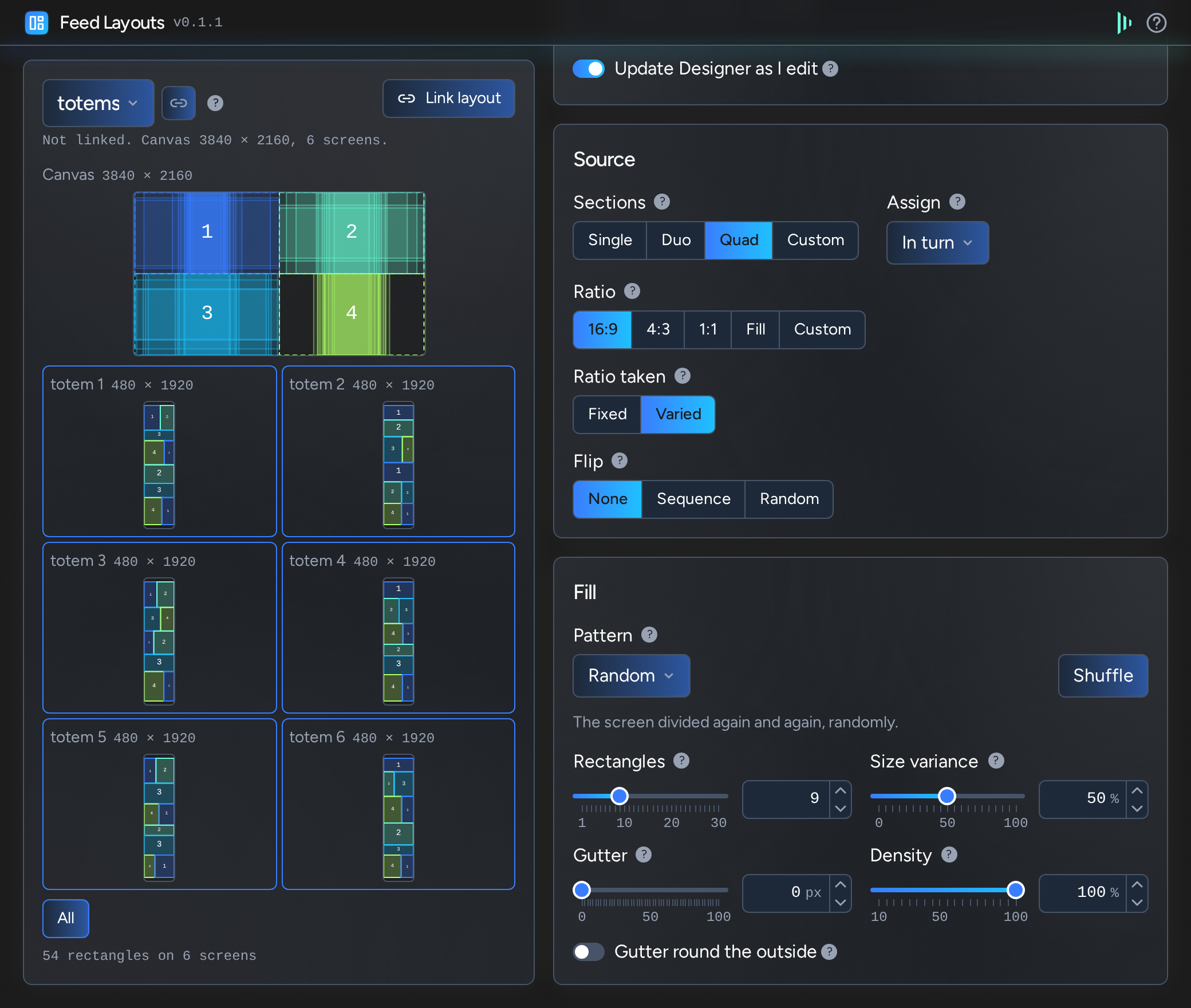
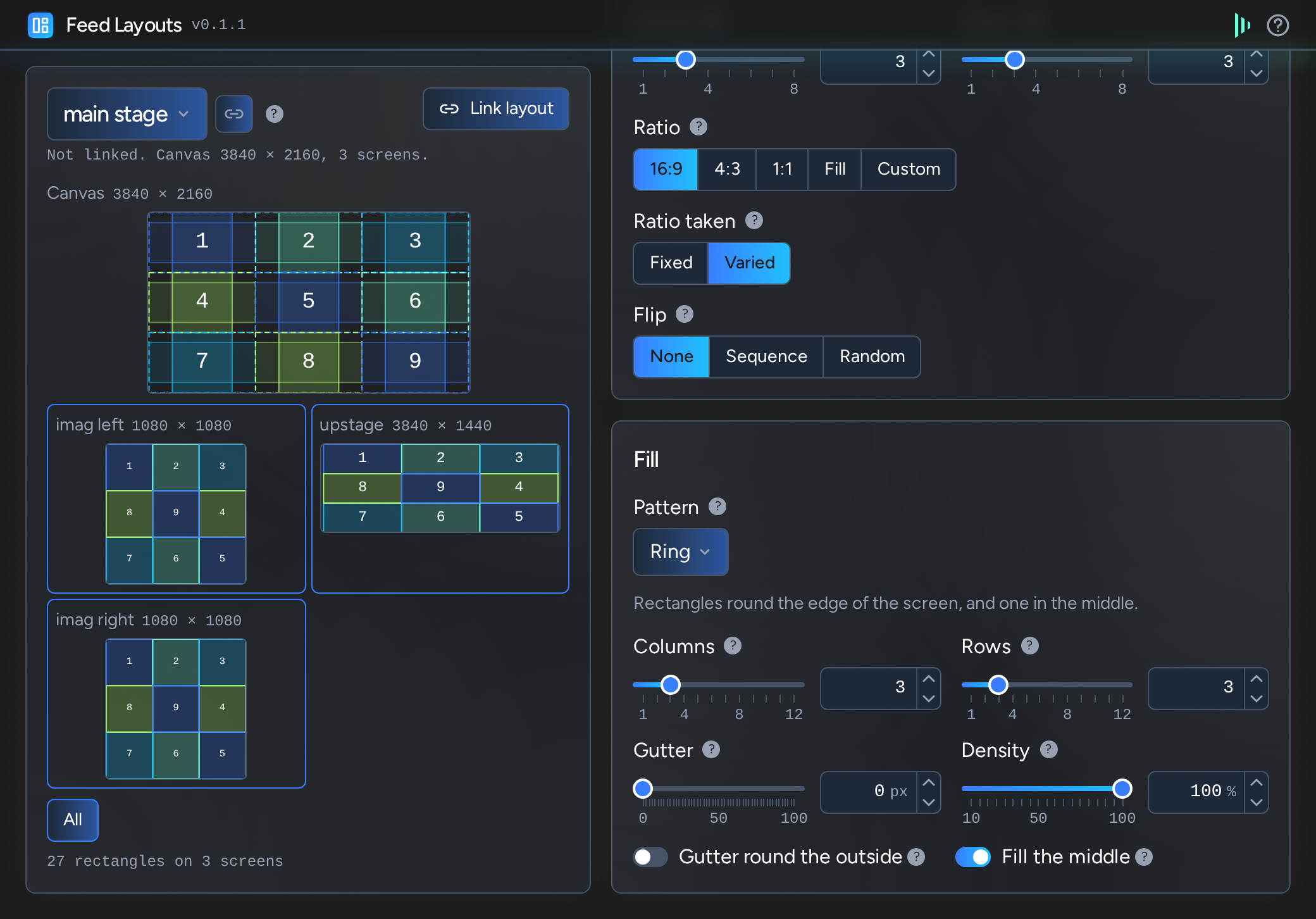
Makes feed map layouts: every screen referenced by a feed mapping cut into feed rectangles in a pattern, each taking a part of the mapping's canvas. A mapping has one layout, and the layout is known by the mapping's name.
From then on, Designer follows what you do in the plugin: each change is written a moment after you stop. Turn Update Designer as I edit off, under the list, and nothing is written until you click Update layout.
When a layout is linked, it writes its feed rectangles to its mapping in Designer - this is indicated by when the link icon beside the mapping's name, and at the start of its row on the list, is lit. When it is unlinked, the icon is dim and the layout is just saved settings, ready to edit or link again later.
To unlink a layout, click the lit link beside the mapping. Its feed rectangles stay in Designer as they are, but the plugin stops updating them or checking them for changes. Deleting a layout in the plugin also leaves its feed rectangles in place.
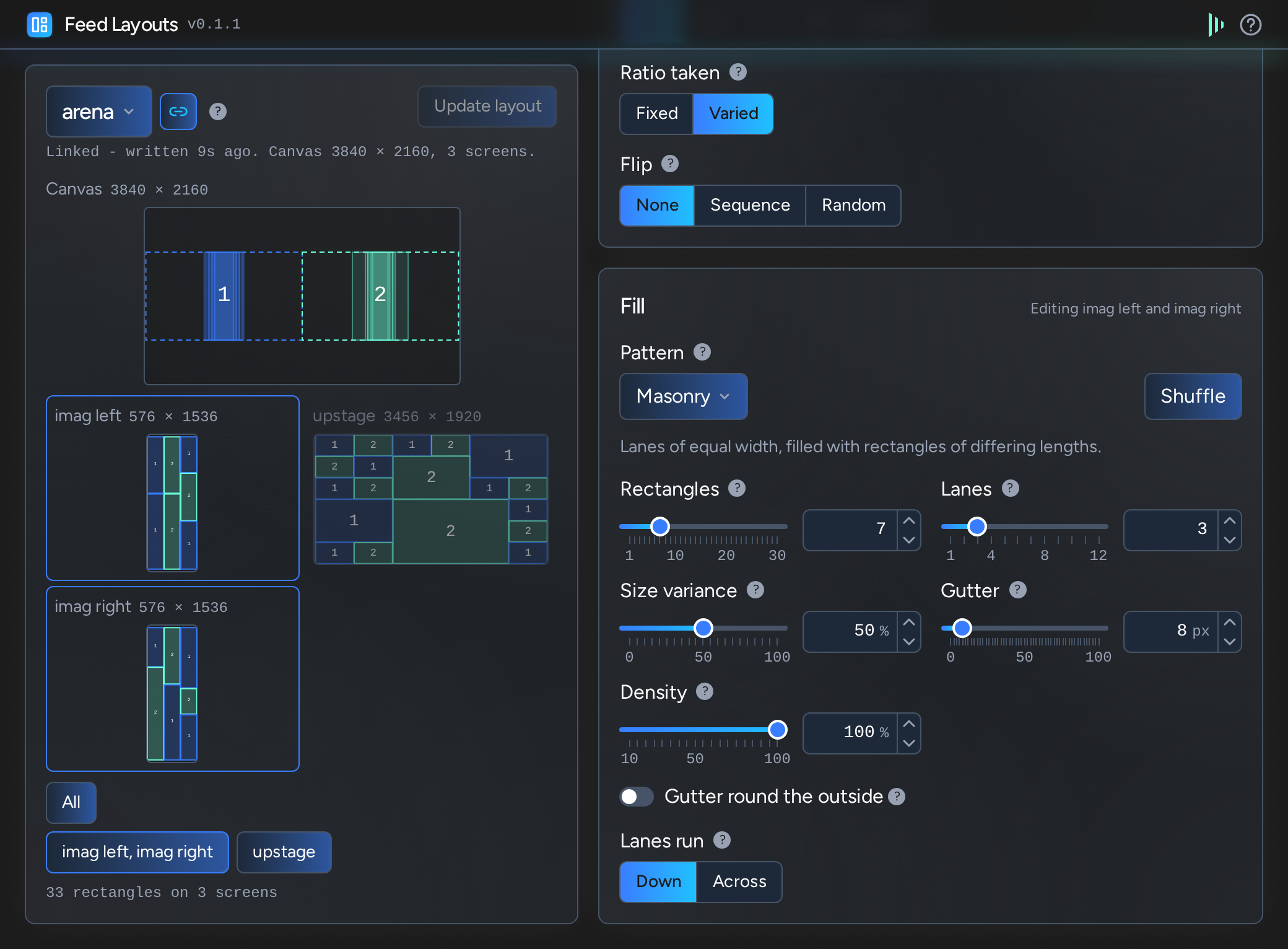
A change to a setting is made to the screens that are selected, which to begin with is all of the ones in the mapping. Click a screen's preview under the canvas to deselect it, and again to reselect it: the selected ones have a bright border. The settings showing are those of the first selected screen.
Under the previews, All selects every screen, or none if every one is selected already. Once screens differ, each set of them that is laid out from the same settings has a button under that ("left, right"), which selects its screens together or deselects them together.
A change made with every screen selected still reaches a screen that was set apart, which keeps what else differs about it. Make alike gives the selected screens the settings that are showing, when they differ.
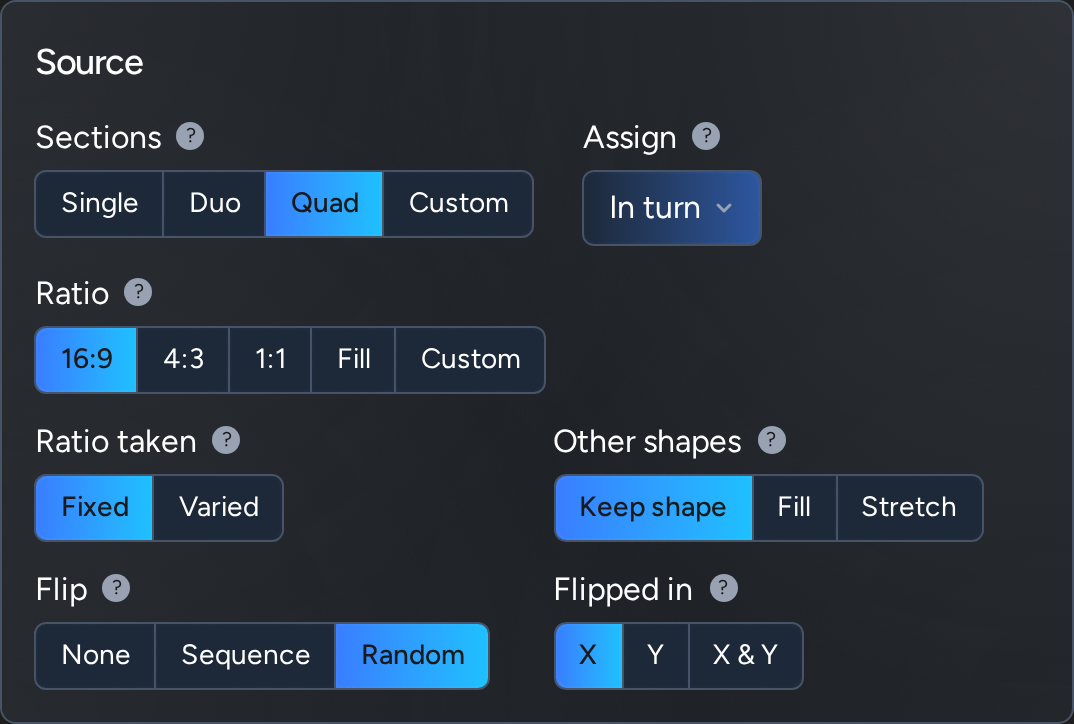
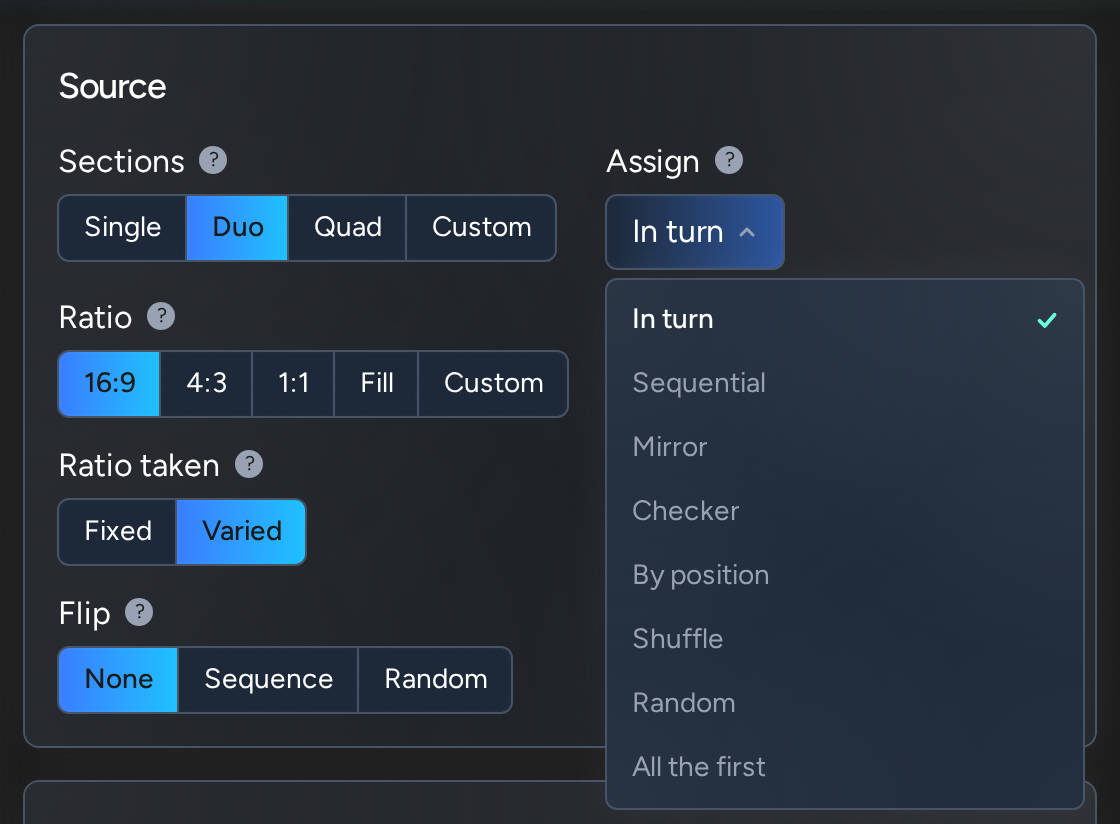
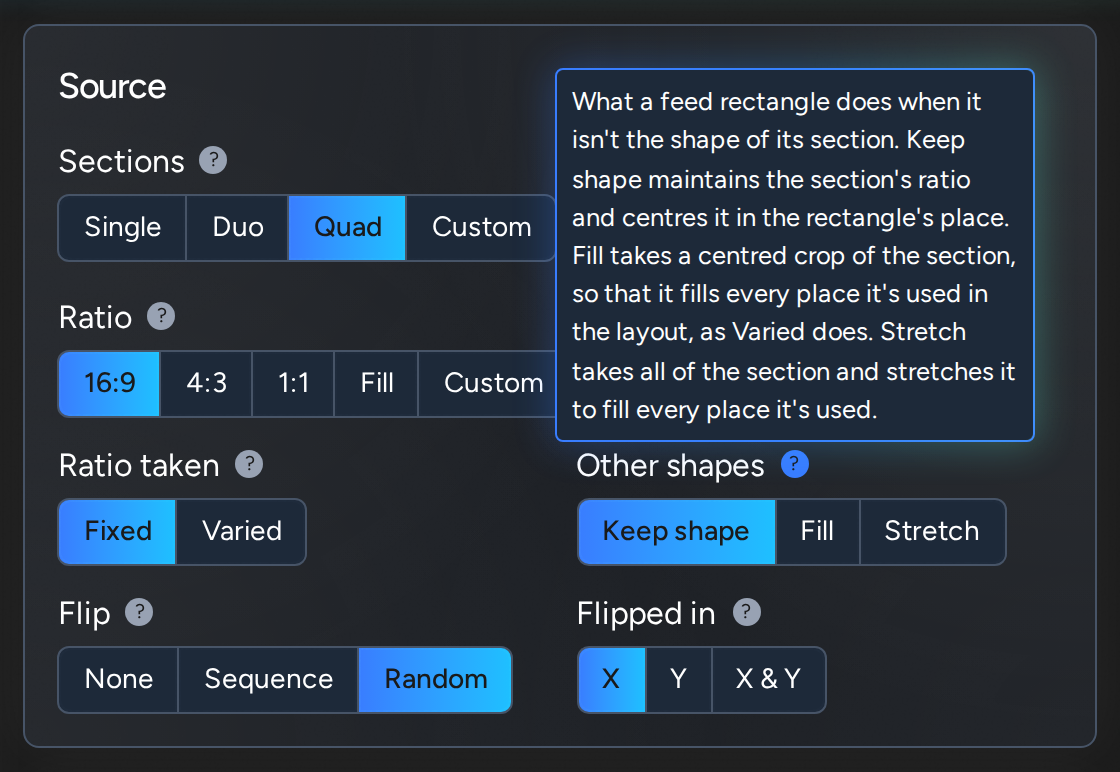
What the feed rectangles take from the canvas.
The sections are outlined on the preview of the canvas, and each rectangle on a screen is coloured based on its section, with its number.
How each screen is cut into rectangles.
Each parameter has a slider and a box for typing it in exactly: you can enter larger numbers in the box than the range of the slider if needed.
Size variance, for Masonry, Mosaic and Random, is how far their rectangles differ in size: at 0% they are as alike as the pattern allows. Gutter is the gap between rectangles, in pixels of the screen, and can run round the outside as well. Density leaves rectangles out randomly, for a pattern with gaps in it: at 50% half of them are there.
Shuffle rearranges whatever parts of the layout are random: the pattern, which rectangles are left out or flipped, and which section each takes. Each screen has its own seed, e.g. two screens of the same size will get different layouts. This arrangement (random seed) is stored with the layout, so it produces the same feed map every time it is written.
Everything is in whole pixels.
A layout is stored as its settings, so it can be recalculated when the screen sizes change (e.g. festival touring). If a screen's resolution or a mapping's canvas changes in Designer, or a screen joins the mapping, its linked layout is marked Screen changed or Canvas changed on the list, and Update writes it again to fit.
A layout is marked Changed in Designer if a screen's feed rectangles were moved or removed there. That is left alone until you click Update layout, which puts the layout back.
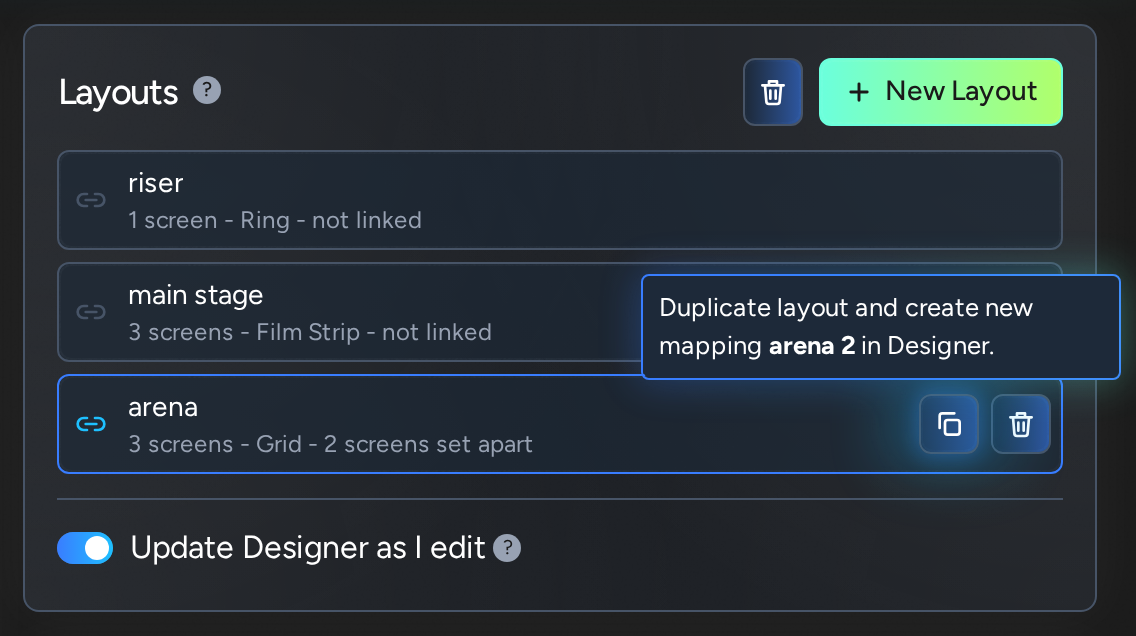
Layouts lists the plugin's layouts by their mappings' names, with how many screens each lays out and its pattern under the name, with the most recently edited at the top, and the rest behind Show more. Click one to work on it. Hover over a row to show Duplicate and Delete.
Duplicate makes a copy of the layout's feed mapping in Designer, named as Designer names a copy ("grid 1" becomes "grid 2", and "stage" becomes "stage 2"), on the same screens with the same rectangles, and puts a copy of the layout on it, linked if the layout was.
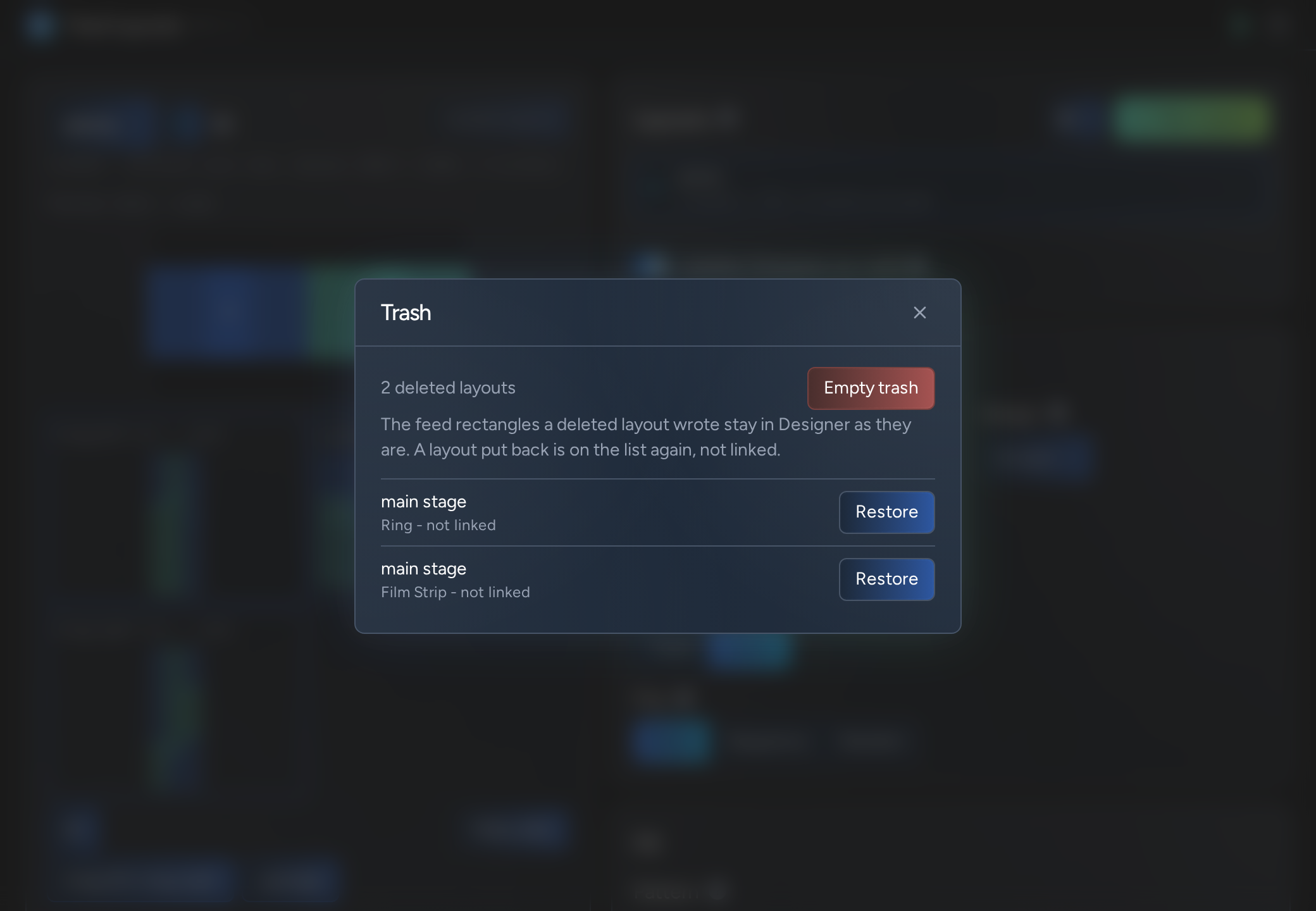
A deleted layout goes to the trash, which is saved in the project with the list: the button with the bin on it, beside New Layout, opens it, to put a layout back with Restore or to delete everything in it for good with Empty trash, which asks first. When a layout is restored, it is put back in the list, but not linked: link it again to write it to its feed mapping. If its mapping has had a new layout made since, that one goes to the trash in its place - hover over Restore to see which.
The list is saved in the project file, so it will persist through a restart and be accessible to all users.
Hover the ? beside any setting for what it does.
Initial version.
GN_FeedLayouts folder into a Plugins folder: your project's, to use it in that project, or d3 Projects/common/Plugins, to use it in every project on that machine.Every plugin has a generous licence that doesn't limit its use in production. There are no licence keys or online activations, and the files are an instant download.
We hope you work in good faith: if you use a plugin commercially, pay to support its development, and don't pass it on.
Read the licence

